ShelfSignal

Who does AI recommend instead of you?

ShelfSignal AI Shelf Check is a free Chrome extension. You ask ChatGPT, Google AI Mode, Perplexity, Claude or Gemini the questions your buyers ask, add each answer with one click, and get a report: your share of AI answers, who takes your place, and what to fix first.

Add to Chrome - it's free No sign-up · Data stays in your browser
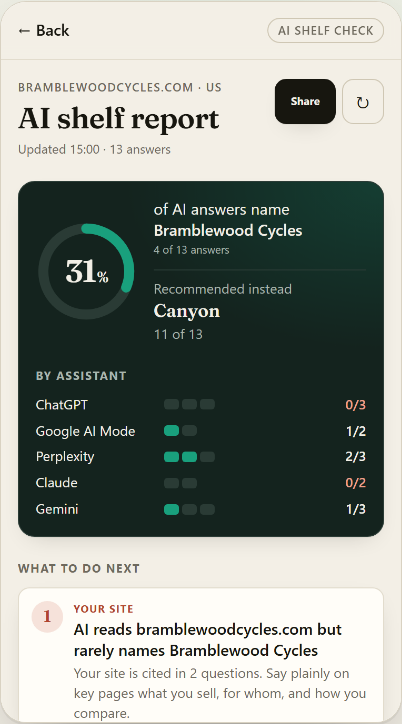
AI shelf report in the extension side panel: 31% share of AI answers, Canyon recommended instead, results by assistant
1Create a project for your brand
2Add 5-10 buyer questions
3Ask each one in several assistants and add the answers
4Open the report and work through the next steps

Step by step

The first project takes about 15 minutes. You need Chrome on a desktop computer. Most assistants answer without an account, but logging in to ChatGPT, Claude and Gemini gives fewer interruptions.

Step 1

Install and open the side panel

  1. Open the Chrome Web Store page and click Add to Chrome.
  2. Click the puzzle icon in the Chrome toolbar and pin ShelfSignal AI Shelf Check, so the icon is always visible.
  3. Click the ShelfSignal icon. The extension opens in a side panel on the right and stays open while you switch tabs.

The extension asks for no access to websites at install. Chrome asks you once, on your first click on an assistant button, to allow the five assistant sites.

Step 2

Create a project

Click New project and fill in four fields:

Brand nameHow buyers know you: "Bramblewood Cycles".
WebsiteYour domain without https: bramblewoodcycles.com. Used to spot when AI cites your site.
Other names AI may useShort names, spellings, product lines, comma separated: "Bramblewood, Bramble Cycles". Answers that use them count as yours.
CountryTwo-letter code of your market: US, GB, DE.

Click Create project. One project = one brand. Agencies create a project per client.

Step 3

Add the questions your buyers ask

Three ways, mix them freely:

  • Type a question in the field under Questions and click Add.
  • From your website. Open your homepage in the current tab, then Suggest buyer questions => Suggest questions from your-domain. The extension reads that one page, guesses what you sell and offers a checklist. Untick what doesn't fit and click Add selected.
  • From a category. Type a product category ("gravel bikes") under Or type your product category and click Add all.

What makes a good question: one a real buyer would ask before choosing, without your brand in it. "What are the best gravel bikes under $2,000?" works. "Is Bramblewood good?" does not - it always names you.

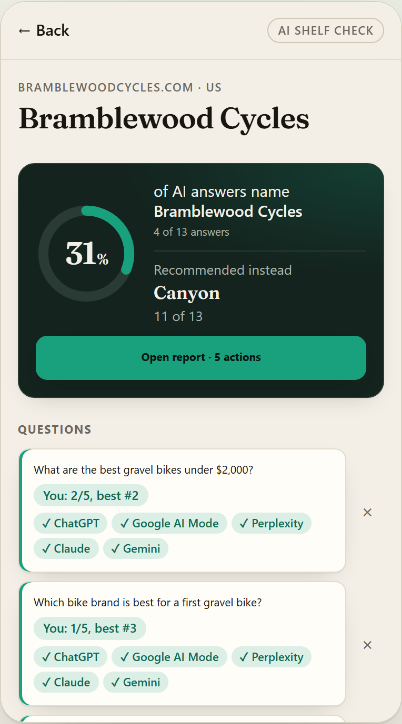
Start with 5-10 questions. Each row on the project screen shows which assistants already have an answer (✓) and how you did.

Project screen: score card, Open report button, list of questions with per-assistant progress

Step 4

Ask the question in an assistant

  1. Click a question to open it.
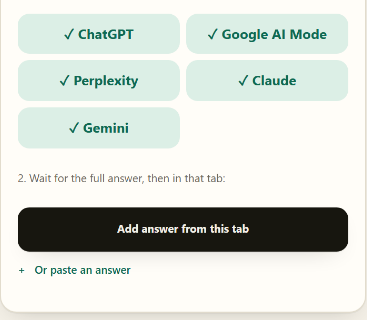
  2. Click an assistant button: ChatGPT, Google AI Mode, Perplexity, Claude or Gemini. A new tab opens and the question is typed into the assistant for you.
  3. Press Enter yourself. The extension never sends anything on your behalf.

The first time, Chrome asks for access to the assistant sites - click Allow. Without it the extension cannot type the question or read the answer.

If the question doesn't appear in the input (the site changed or is still loading), it is already copied to your clipboard: paste it with Ctrl+V / Cmd+V.

Step 5

Add the answer

  1. Wait until the assistant has finished writing the whole answer.
  2. Stay on that tab and click Add answer from this tab in the side panel.
  3. The extension pulls out the brands, their order in the answer and the sources the assistant cited. The assistant button gets a ✓.

Any other assistant (Copilot, Grok, Meta AI, DeepSeek or anything else): open Or paste an answer, pick the assistant (or Other), paste the full answer text and click Add pasted answer.

AI answers change from run to run. Ask the same question twice in the same assistant and add both answers: the button shows ×2 and the numbers get steadier.

Question screen: assistant buttons with checkmarks and the Add answer from this tab button

Step 6

Read the result for a question

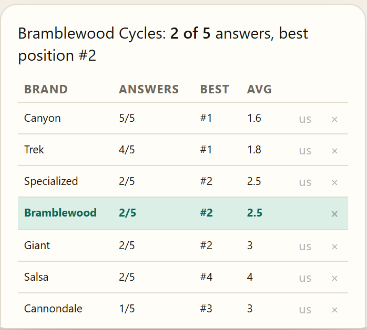
Under the buttons you see how many answers named you and your best position, then every brand found:

AnswersIn how many of the answers the brand appears: 4/5.
BestIts highest place in any answer. #1 = named first.
AvgAverage place across the answers that name it.
Sources citedWebsites the assistants linked to. This is what AI reads about your category.

Fix the list in one click. × hides a name that is not a brand (a material, a store type, a generic word). us marks a spelling as your own brand. Fixes apply to all questions in the project and can be undone in the report.

Brand table with us and × buttons in each row

Step 7

Open the project report

Go back to the project and click Open report. It is built from all answers in the project.

Share ringPercent of all answers that name your brand.
Recommended insteadThe brand named most often in your place.
By assistantOne row per assistant: how many of its answers named you.
Recommended instead of youYou vs the top competitors, by number of answers.
Questions without youQuestions where you never appear. Click one to open it.
Your correctionsEvery × and us you set. Click × on a chip to undo.

Click ↻ after adding new answers to rebuild the report.

AI shelf report: share ring, recommended instead, results by assistant

Step 8

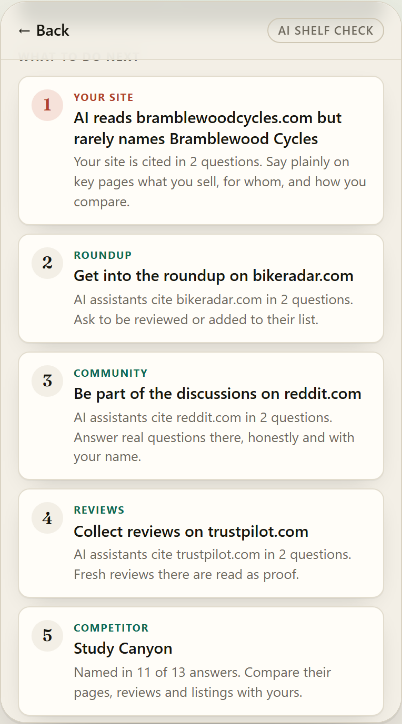
Work through "What to do next"

Up to five actions, built from the sources the assistants actually cite. Each has a tag:

Your siteRoundupReviewsCommunityVideoMarketplaceWikiName clashCompetitorMore data
  • Your site - AI reads your site but rarely names you: say plainly on key pages what you sell, for whom and how you compare.
  • Roundup, Reviews, Community, Video, Marketplace, Wiki - a site the assistants cite for your questions. Get listed, reviewed or discussed there.
  • Name clash - a look-alike name confuses AI. Make your full name and category clear everywhere.
  • Competitor - study the brand that wins: their pages, reviews and listings.
  • More data - too few answers for a solid conclusion. Ask more questions or more assistants.
What to do next: five numbered actions with tags Your site, Roundup, Community, Reviews, Competitor

Step 9

Share the report

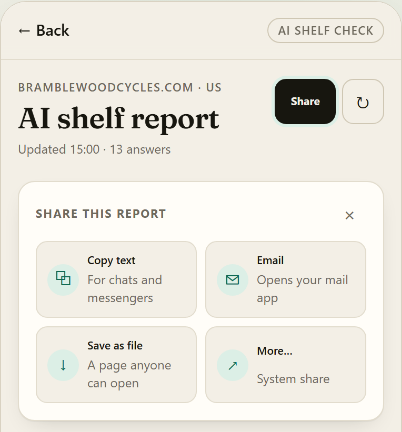
In the report click Share:

  • Copy text - a short summary for Slack, Teams or a messenger.
  • Email - opens your mail app with the summary.
  • Save as file - an HTML page your team or client can open in any browser, no extension needed.
  • More… - the system share sheet, where Chrome supports it.
Share this report menu: Copy text, Email, Save as file, More

Get numbers you can trust

One answer is an anecdote. A pattern across assistants and repeats is a signal.

Ask at least 3 assistants

Each one reads different sources. A brand can lead in Perplexity and be absent in ChatGPT.

Repeat each question

Ask the same question twice in one assistant. If a brand shows up both times, it is stable.

Start a fresh chat

Ask in a new chat each time. ChatGPT memory and past chats can tilt answers toward brands you mentioned before.

Ask like a buyer

"Best ... for ...", "which ... should I buy", "alternatives to ...". Keep your own brand out of the question.

Check the brand list

Hide non-brands with × and add your spellings with us before you read the report.

Re-check monthly

Your projects stay in the extension. After changes on your site or new reviews, add fresh answers and compare.

If something doesn't work

Message or problemWhat to do
"Access to the assistant sites is needed..."You declined the Chrome prompt. Click the assistant button again and choose Allow.
"No answer found on this page yet"The answer is still being written, or you are on another tab. Wait for the full answer, switch to the assistant tab, click again.
"The assistant did not generate an answer here"The assistant showed an error or a limit. Ask again, or log in to that assistant.
"Could not read this tab"Reload the assistant page and click Add answer again. If it keeps failing, use Or paste an answer.
The question did not appear in the assistantPaste it from the clipboard (Ctrl+V / Cmd+V) and press Enter.
"Open your-domain here first" on Suggest questionsOpen your homepage in the current tab, then click the button again.
"...shows a check page" or "Could not tell what ... sells"Your site shows a bot check, or the homepage is too thin. Type your product category instead.
A word that is not a brand is in the listClick × next to it. Undo any time under Your corrections in the report.

Private by design

There is no ShelfSignal server behind the extension. Read the full privacy policy.

  • Free, no account, no sign-up.
  • Projects, questions and answers are stored only in your browser. No analytics, no tracking.
  • The extension reads a page only when you click, and only on the assistant sites or your own site.
  • It never presses Enter or sends anything in an assistant for you.
  • Removing the extension deletes all its data. To keep a report, save it as a file first.

Not affiliated with OpenAI, Google, Perplexity or Anthropic. Screenshots show a fictional demo brand. All tools →